Introduction
Sonos speakers are renowned for their excellent sound quality, making them a go-to choice for those wanting to enhance their home entertainment systems. With the ability to connect to your TV wirelessly, Sonos speakers eliminate the clutter of cables, providing a streamlined and aesthetic setup. In this guide, we’ll discuss how you can connect your Sonos system to your TV seamlessly, creating a perfect audio environment.
Understanding Sonos and TV Compatibility
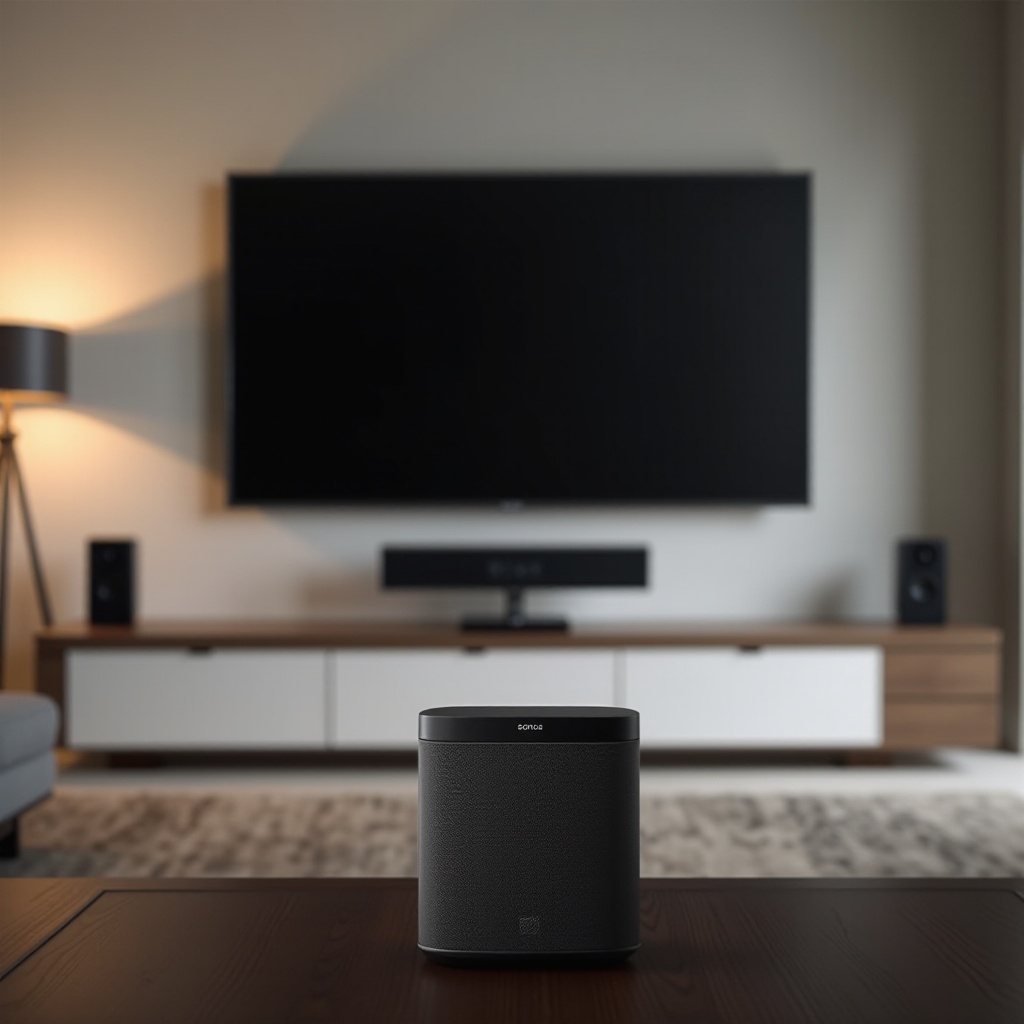
Before starting the connection process, checking that your Sonos speakers and TV are compatible is crucial. Not all Sonos models may suit TV audio output, so verification is key.
-
Sonos Speaker Models: Ensure your Sonos Beam, Playbar, or Playbase is ready for connection. These models are specifically designed for use with TVs, ensuring you receive optimal performance.
-
TV Features: Your TV should support HDMI ARC (Audio Return Channel) or possess an Optical Audio output. Both facilitate the transmission of audio signals from TV to Sonos speakers.
This groundwork is essential to ensure a smooth, hassle-free connection process.
Preparing for Wireless Connection
Once compatibility is confirmed, it’s time to prepare your devices. Ensuring they’re up-to-date is fundamental:
-
Update Firmware: Regularly check for and install the latest firmware updates on your Sonos speakers and TV to access the most recent features and enhancements.
-
Network Settings: Make sure both your Sonos speakers and TV are connected to the same Wi-Fi network, as this is vital for seamless communication between your devices.
-
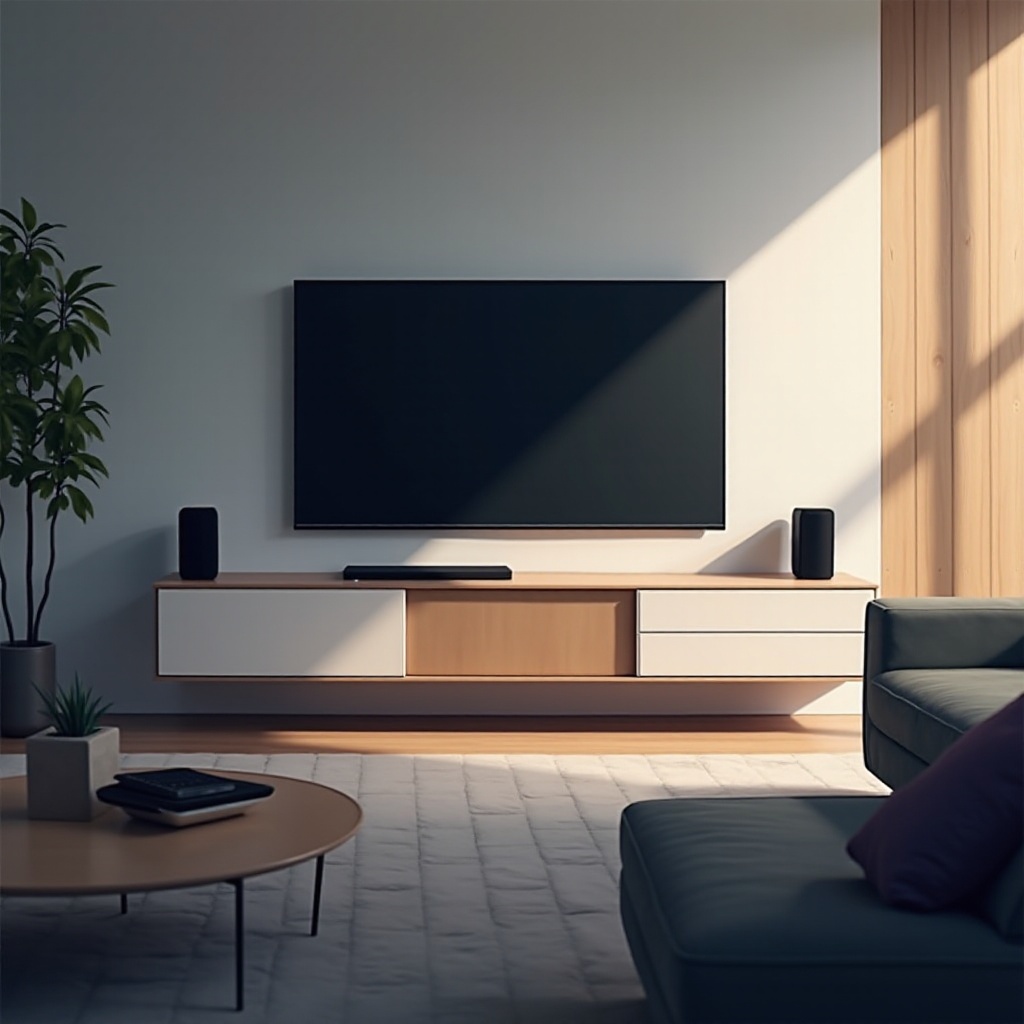
Positioning: Strategically place your Sonos speakers so they can easily receive signals from the TV without obstructions or barriers.
Having your devices properly prepared will pave the way for a successful connection setup.
Methods to Connect Sonos to TV Wirelessly
There are several methods available to establish a wireless connection between Sonos speakers and your TV.
- Using HDMI ARC/eARC:
- Connect an HDMI cable from your TV’s HDMI ARC/eARC port to the compatible Sonos speaker.
- Navigate to the TV’s audio settings, selecting HDMI as the output channel.
-
In the Sonos app, add your TV as an input source under the system settings.
-
Optical Audio Adapter Setup:
- Attach the optical audio adapter to the optical out port on your TV.
- Connect this adapter to your Sonos speaker.
-
Set the TV’s audio output to Optical in the audio settings menu.
-
Wi-Fi Connection Setup with Sonos Beam:
- Use the Sonos app to connect the Beam to your TV via Wi-Fi.
- Follow the in-app instructions to wirelessly sync the devices.
- Ensure the Beam is included in the Sonos app as part of your home audio system.
Implementing these steps will help establish a robust wireless connection, enhancing your TV’s audio output.
Troubleshooting Common Issues
Despite the simplicity of the setup, connectivity issues can sometimes occur. Here are ways to troubleshoot:
- Connectivity Problems: Check all connections are secure and try restarting both the TV and Sonos speakers.
- Audio Lag: Adjust audio delay settings in the Sonos app to synchronize audio precisely with your TV.
- No Sound: Ensure the TV’s audio output isn’t muted and the correct input source is selected in the Sonos app.
Successfully handling these issues will maintain your audio system’s seamless operation.
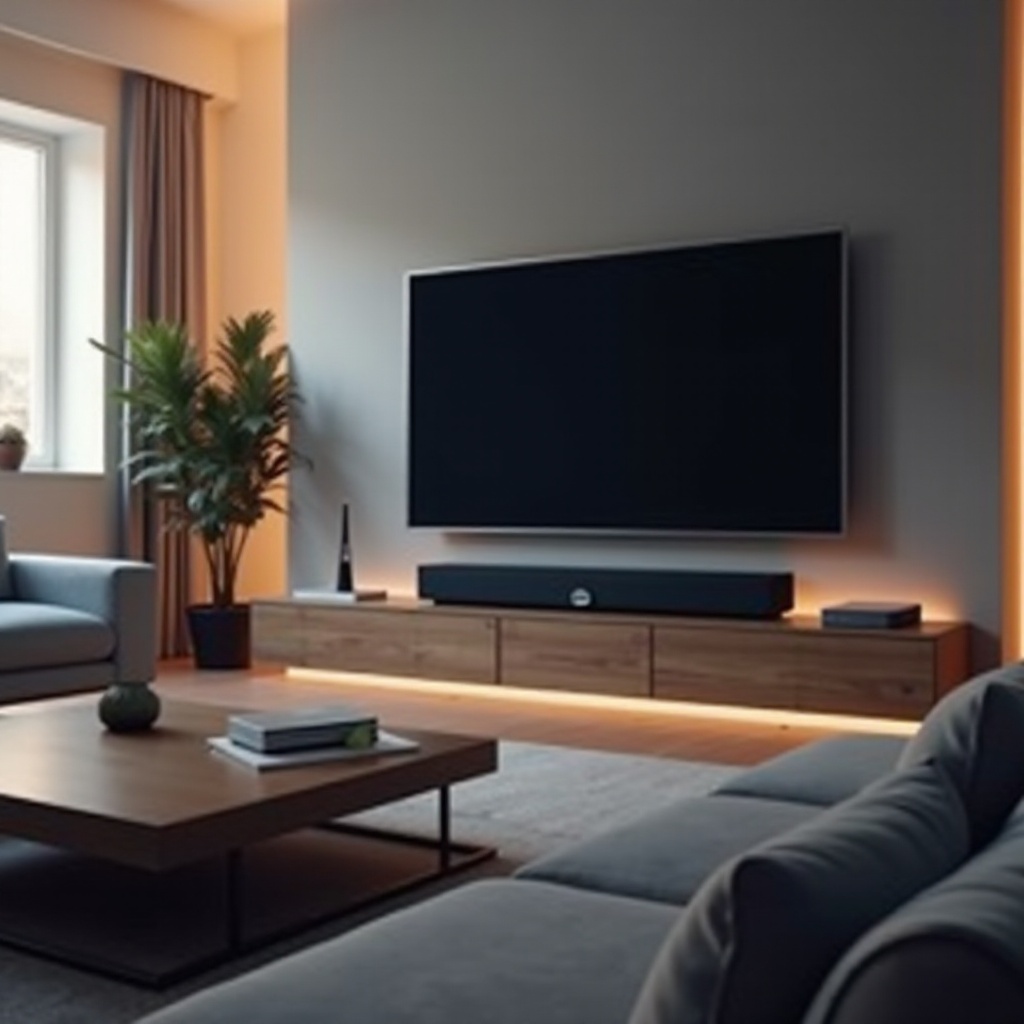
Enhancing Audio Quality and Experience
With connectivity issues sorted, optimizing your audio quality will elevate your entertainment experience:
- Trueplay Tuning: Utilize the Sonos app’s Trueplay feature to automatically calibrate the speakers, tailoring the sound to your room’s acoustics.
- Speaker Placement: Place your speakers to distribute sound evenly without obstruction, ensuring an immersive audio experience.
These tweaks will ensure your Sonos setup delivers exceptional sound performance, making every listening moment memorable.
Conclusion
Connecting your Sonos speakers to your TV wirelessly offers a substantial upgrade to your home entertainment system. With these straightforward steps, you can enjoy a clutter-free setup and superior sound quality. Explore Sonos speaker features further to enrich your viewing and listening experiences.
Frequently Asked Questions
Can I connect Sonos speakers directly to my TV without Wi-Fi?
While direct connections without Wi-Fi are limited, you can use cables like HDMI ARC or optical for a physical connection. Wi-Fi provides a smoother experience.
Which Sonos model is best for connecting to TV wirelessly?
The Sonos Beam is highly recommended for wireless TV connections due to its functionalities like HDMI ARC/eARC and Wi-Fi compatibility.
How can I improve the sound delay when using Sonos with my TV?
Adjust the audio delay settings in the Sonos app to sync audio more accurately with your TV, reducing noticeable lag.